
Create and schedule your first post
Write a post, preview it for your channels, and choose when it should publish.
Overview
Post Planner lets you prepare one piece of content for several connected pages. Each platform can have its own text, media, and publishing time. You need post-edit access and a working page connection.
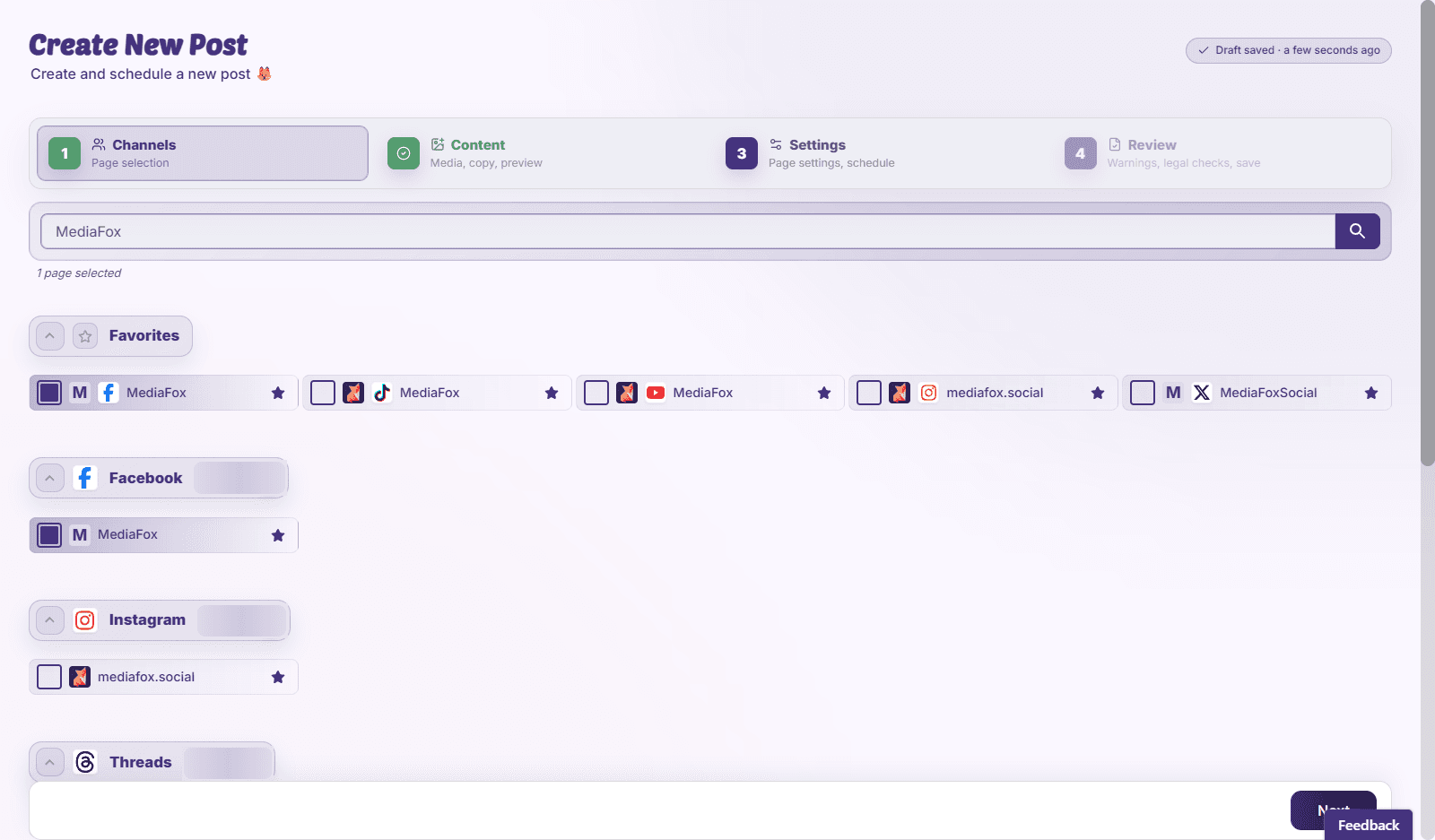
Prepare and schedule
- Choose your pages
Open Post Planner and select the pages that should receive the post. Check any connection warnings beside them.
- Add content
Write the caption and add media. Open each platform’s preview and fill in fields such as a video title where required.
- Set the publishing time
Choose a future date and time, checking the timezone shown. Review per-page times if you stagger the post.
- Review and save
Resolve validation errors, review collision warnings, then choose Save & Schedule.
Confirm the schedule
Open the calendar and find the post on the intended date. Saving a time in the past can start publishing immediately. If the post needs approval, use Request Review and arrange for an approver to review it before its planned time.
Availability and access
Availability depends on your organization access and assigned permissions.