
Connect your first social page
Connect a social account so MediaFox can publish content and collect the data your platform provides.
Overview
Connect pages inside the organization that will manage them. You need permission to edit pages in MediaFox and access to the page or channel on the social platform.
Connect the page
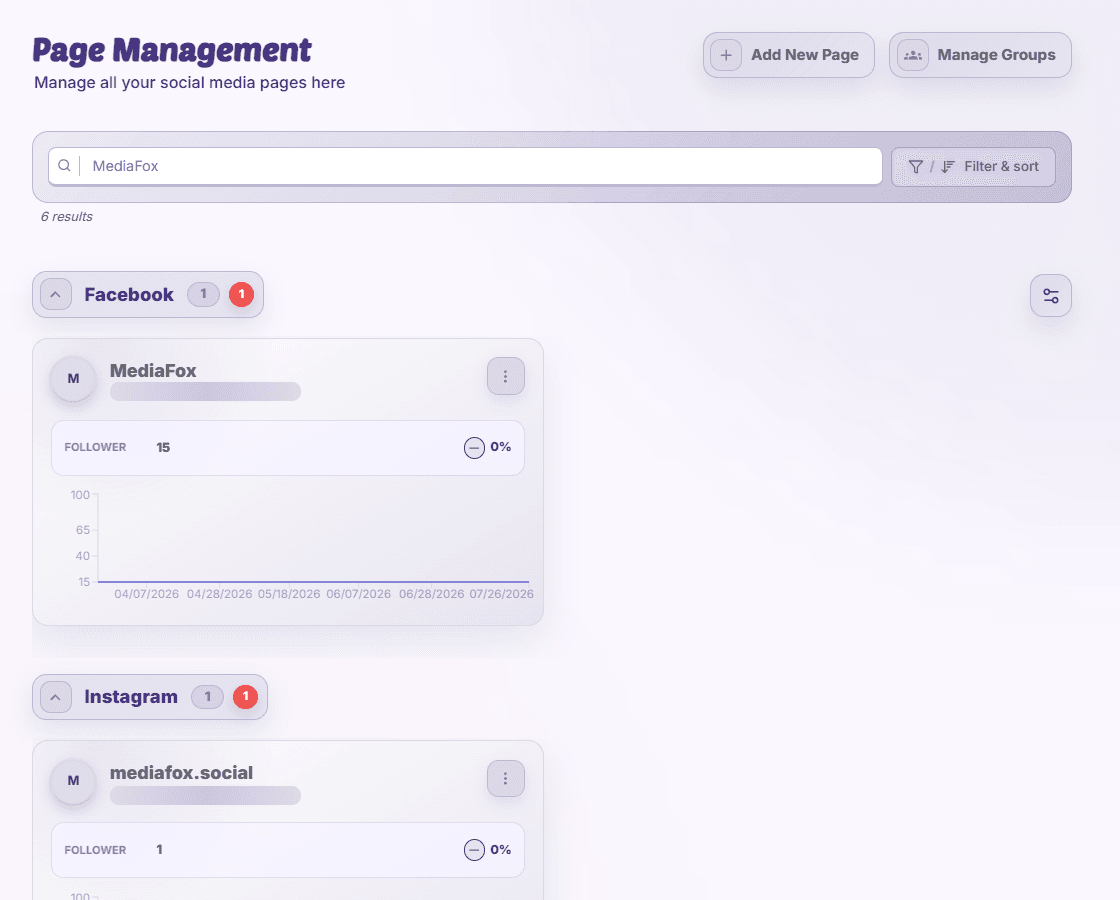
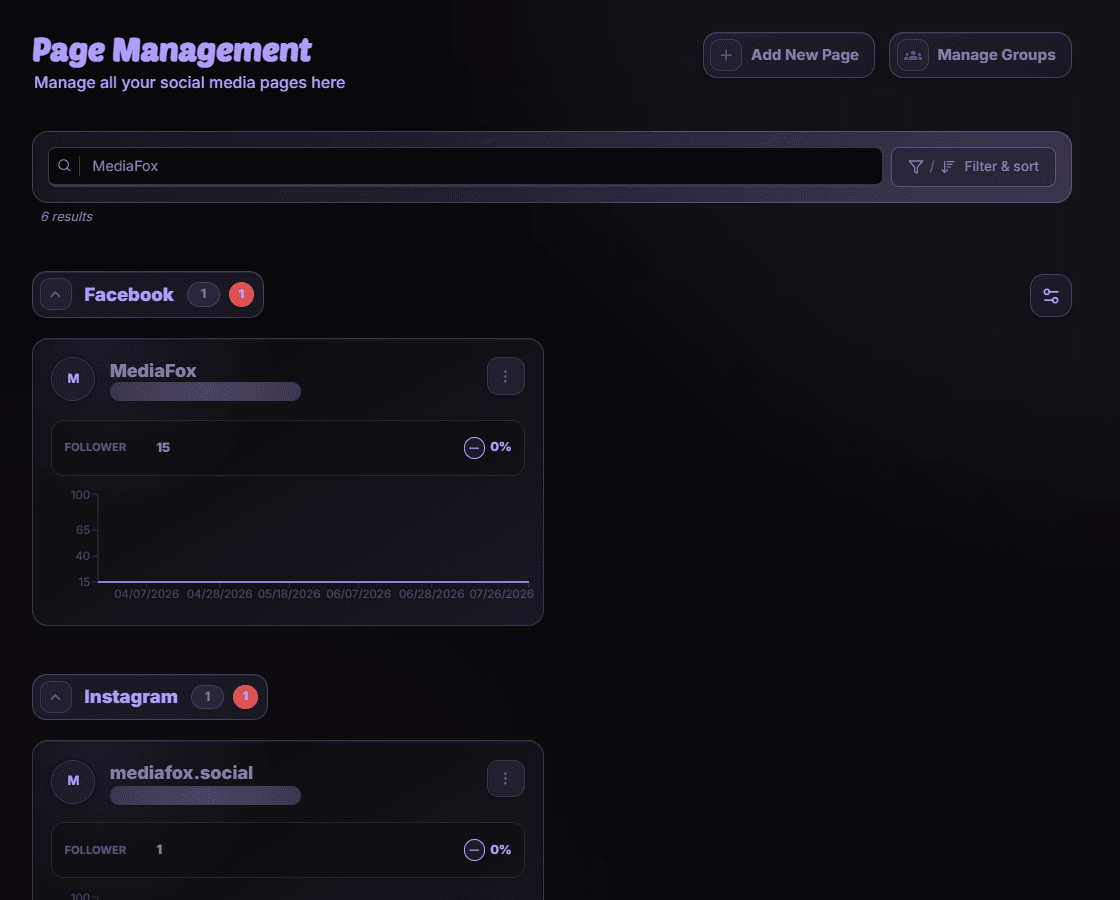
- Open Page Management
Select your organization, open Page Management, and choose the add or connect action.
- Authorize the platform
Choose the platform, allow the authorization window, and sign in with the account that manages the page. Review the requested permissions.
- Select the page
Where a page picker appears, select the pages or channels you want to add and confirm.
- Check the connection
Find the page in Page Management. Follow any connection warning; an initial collecting-data message means reporting information is still being gathered.
No page to select?
Check that the platform account owns or manages the page and that the account type is supported. If a page is already connected, find its existing card instead of adding it again.
Availability and access
Availability depends on your organization access and assigned permissions.